Confirmation before attending Qualification renewal training (online)
Please check the following items
*If all items are not checked, you will not be able to start training.
-
*As a general rule, please attend the lesson on the reserved date and time. However, you may also start the lesson on the same day between 9:00 and 18:00. If a problem occurs outside of customer service business hours (9:00 to 18:00), support will not be available.
-
*If the training is left interrupted, your training will be graded up to that point, but the results may be delayed.
- Please be sure to read the following precautions.
-
① The content of this training program and the quizzes administered are based on laws and regulations in effect as of April 1, 2026.
-
② If the video stops or does not play
If the connection is poor or your PC's specifications are lower than recommended, the video may stop or remain stuck on loading without playing repeatedly.
If the video does not play after a few seconds, please close your browser immediately, clear your cache, and restart the training. The video will resume from the point where you closed the browser.
For information on how to resume or clear your cache, please see "What should I do if the video stops or will not play?" in the "Frequently asked questions during the course" section of the FAQ. -
③How to check your score
When you click the "Next" button on the final question in Area 5, a confirmation message will pop up asking "Are you sure you want to end this section?". Select "Yes" to end the training. Select "No" to return to the confirmation test.
If you select "Yes", the message "Please wait for a moment until the screen changes" will be displayed. The same message will also be displayed if the training time limit is reached.
Please wait until the screen changes and your score will be displayed. The result will be notified to you by the person in charge of application at your company within two business days after the course date. -
If you are unable to disable it, please make sure you fully understand the following before taking the course.
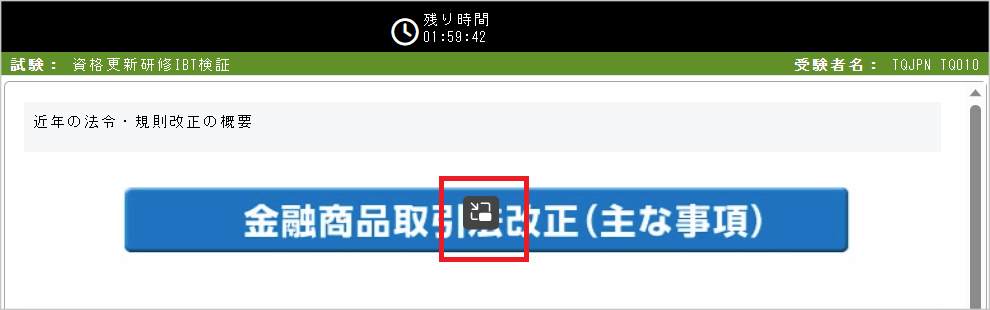
You may not use the browser's picture-in-picture function (a function that always displays and plays videos in a separate window on the foreground of the screen) for videos played during the class.
If you move your mouse cursor over the video during the lesson, the "Picture in Picture" button will appear, but please do not click on it, as it will interrupt the lesson.